If you currently have the CRM module available on your account / COOLSite, you can enable any of your My Form Page Types to also collect data into CRM. In order to set this up, you will need to do the following.
1. Click on "
Pages" from the menu on the left in your admin area.
2. Edit any
My Form page types.
3. Click on the "
Form Properties" link above.
4. Scroll down to the
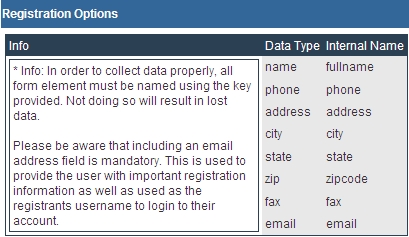
Registration Options section and follow the instructions shown on the screen shot / image (see below).
5. In addition, select "
Yes" for "
Create CRM account" and also select an option for the remaining questions as well.
6. Click on the "
Submit" button at the bottom of this page when done, to save your changes.
7. Click on "
CRM" from the menu on the left.
8. Click on "
Contact Groups" at the top of the page.
9. At this point you can either associate your My Form page with an existing group or a new group:
a.
Existing Group
- Double-click on an existing group and click on the "
Rules" tab above.
- In the "
Source:" drop-down box, select "
All".
- In the "
Source Page:" drop-down box, select your My Form page as an additional
Source Page for this group.
- Click on the "
Submit" button at the bottom when done, to save your changes.
b.
New Group
- Click on the "
Add Group" button below and click on the "
Rules" tab above.
- In the "
Source:" drop-down box, select "
My Form".
- In the "
Source Page:" drop-down box, select your My Form page as a Source Page
for this group.
- Click on the "
Submit" button at the bottom when done, to save your changes.